
Media and playlists
Upload images and videos. Arrange them in a playlist — a sequence of content shown on a screen. Update one screen or a whole group from your browser.
Prepare content in your browser, choose your screens and publish. dslite downloads the content to each player and follows your schedule.

Upload images and videos. Arrange them in a playlist — a sequence of content shown on a screen. Update one screen or a whole group from your browser.

Breakfast menus in the morning. Offers for the weekend. Plan your content with shared schedules and let each screen follow its local time.

Downloaded images and videos keep playing if the connection drops. Screens switch to new content after the full update is ready.

Place videos, images and text in separate zones. Add a clock, weather or a web page. Online sources need an internet connection.

Group screens by location or purpose. Assign playlists and shared schedules to multiple screens at once.

Check connectivity and the latest synchronization. Request a screenshot to see what a player is displaying.
This is the real dslite workspace with demo content. Build a playlist — a sequence of images and videos played on your screen. Then assign it to a screen and publish.
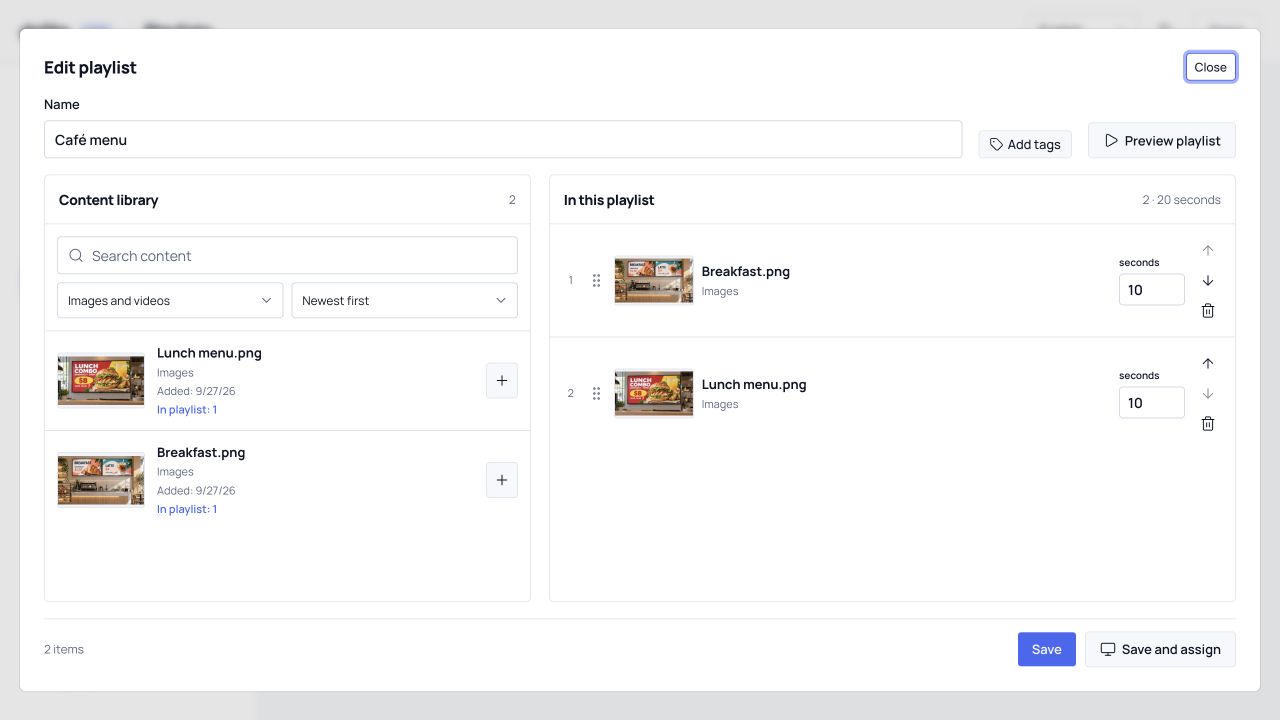
Upload ready-to-play images and videos.
Choose the order and duration of each item.
Assign the playlist to your screen and publish the update.
Upload your ready-to-play images or videos and put them in a playlist.
Install the Android player. Enter the six-digit code shown on your screen in dslite.
Choose your playlist and publish. Add a schedule whenever you need one.
Digital signage lets you show menus, promotions, videos and information on connected displays. dslite is the software you use to prepare that content, choose when it plays and manage your screens remotely.
A screen with HDMI, a dslite player and internet for setup and updates. Order the player directly from us; email sales@dslite.ru for hardware pricing and delivery to your location.
Yes. Downloaded images, videos and schedules continue to play offline. An internet connection is needed for new content, live websites and advertising. Weather keeps the last downloaded reading.
Ready-to-play JPEG, PNG and WebP images, and H.264 MP4 videos, up to 250 MB per file. Prepare PDFs and presentations as images or video before uploading. dslite stores your original files without conversion or compression.