How to display content on your screen
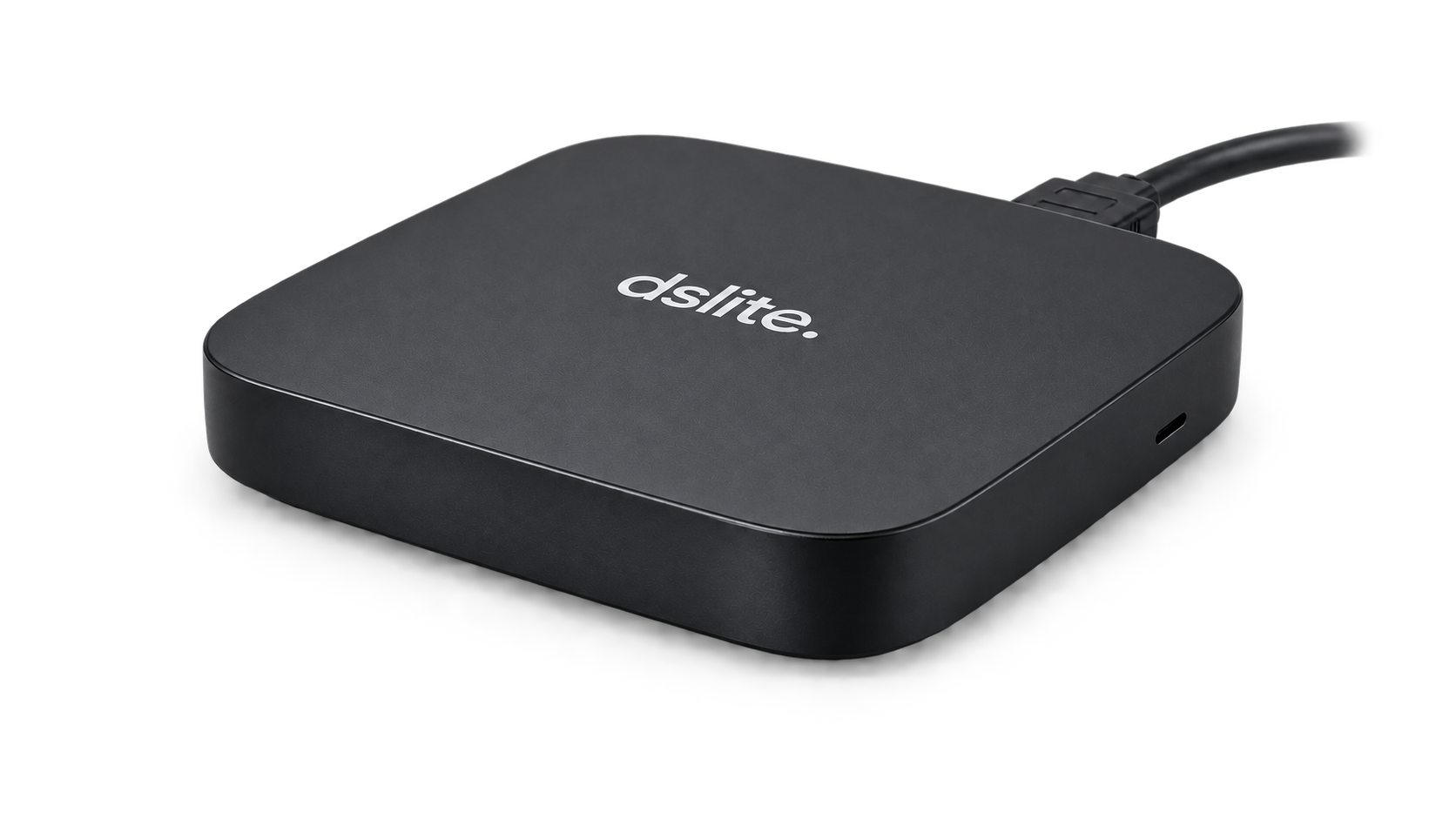
You need a screen with HDMI, a dslite player and internet for initial setup. Order the player from us, then manage your content from your browser.

Four steps to your first playback
1. Connect the player
Connect your Android box to the TV over HDMI, then connect power and internet. Install and open the dslite app.
2. Add the screen to your account
Create an account. In Screens, choose Connect screen and enter the six-digit code on your screen. Name the screen after its location.
dslite.Pairing code
582 914
Enter this code in Screens.
3. Upload your content
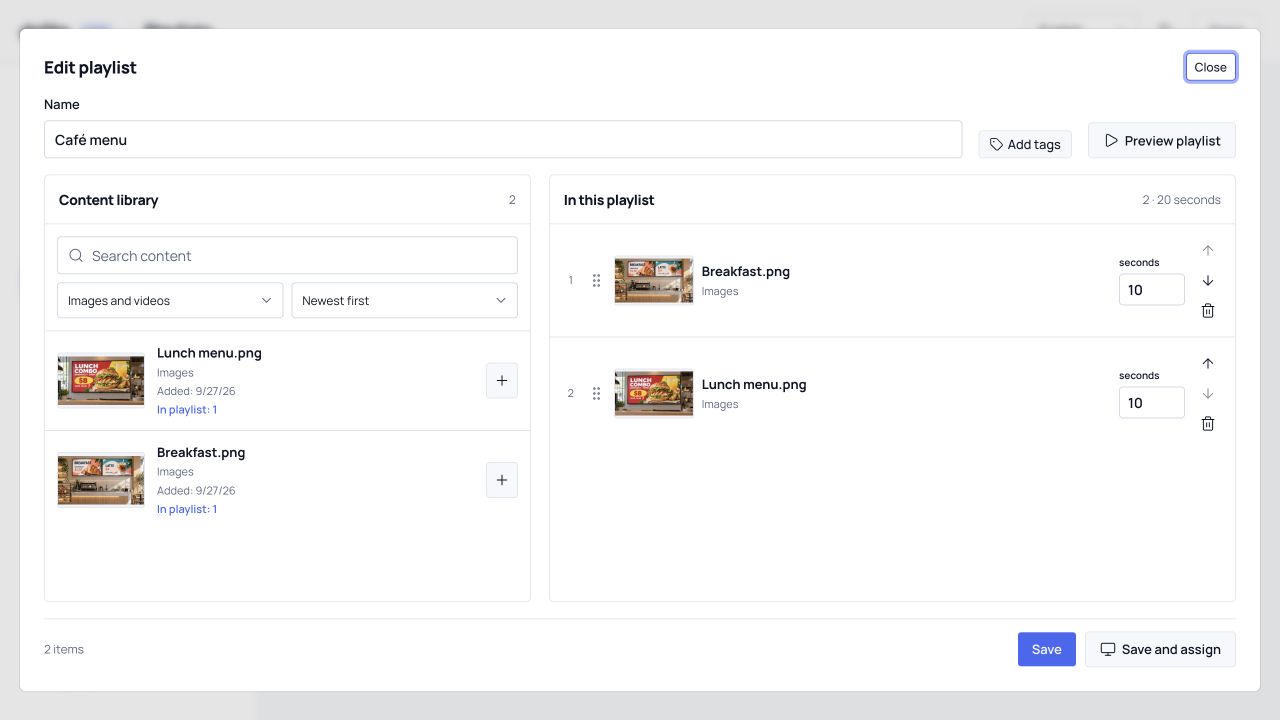
Add ready-to-play images or MP4 videos. Create a playlist and set the order and display duration.
Menu playlist

Breakfast.jpg
10 s
Lunch.jpg
10 s4. Publish the playlist
Assign the playlist to your screen and publish. Wait for all files to download. Add a schedule for breakfast, lunch or promotions.


See how content management works
This is the real dslite workspace with demo content. Build a playlist — a sequence of images and videos played on your screen. Then assign it to a screen and publish.
Add your content
Upload ready-to-play images and videos.
Build a playlist
Choose the order and duration of each item.
Publish to a screen
Assign the playlist to your screen and publish the update.
Check the result on your screen
Check that text is readable from the usual viewing distance and that each slide stays up long enough. In your workspace, check player status and request a screenshot. Then you can connect your other locations.
Start freeFrequently asked questions
Do I need to be near the screen to update content?
No. After initial setup, upload and publish from your browser. The player must be online to receive an update.
Which files should I prepare?
JPEG, PNG or WebP images and H.264 MP4 videos, up to 250 MB per file. Export PDFs and presentations to images or video first. Uploaded originals are not converted.
Why has my new content not appeared?
Check that the playlist is assigned to the right screen, changes are published and the player is online. It switches to a new publication after all required files have downloaded.
What if the pairing code expires?
A code is valid for ten minutes. Use the current six digits shown on your screen and enter them in Screens.